If you are asking is my iPhone hacked, here is the reassuring reality: a sluggish device or an aging battery that drains quickly almost never indicates spyware. Because of Apple’s sandboxed operating system, real device compromise leaves specific, detectable configuration fingerprints. In this guide, we break down exactly how to know if my iPhone is hacked using five direct forensic checks that take under two minutes.
Verify whether your mobile data or Wi-Fi connection exposes unencrypted DNS requests, private IP addresses, or location data to rogue network sniffers. 100% in-browser, zero telemetry stored.
Test My Connection for Leaks →If you are urgently wondering is my iPhone hacked, run these 5 immediate forensic verifications in order:
- Configuration Profiles: Navigate to Settings › General › VPN & Device Management. If no profiles are installed, unauthorized enterprise management and traffic rerouting are ruled out.
- Apple ID Hardware List: Open Settings › [Your Name] and scroll to the bottom. Any unrecognized iPhone, iPad, or Mac listed here possesses full synchronized access to your iCloud Keychain and messages.
- Battery & Thermal Anomalies: Check Settings › Battery. A genuinely compromised iPhone shows continuous background activity and battery drainage from nameless apps while the screen is off.
- Hardware Sensor Indicators: Watch your Dynamic Island or top status bar. A persistent green dot (camera) or orange dot (microphone) when no applications are active indicates active sensor surveillance.
- Malicious Calendar Subscriptions: Inspect Settings › Apps › Calendar › Calendar Accounts. Pop-up phishing alerts claiming your device has viruses are almost always spam calendar feeds rather than malware.
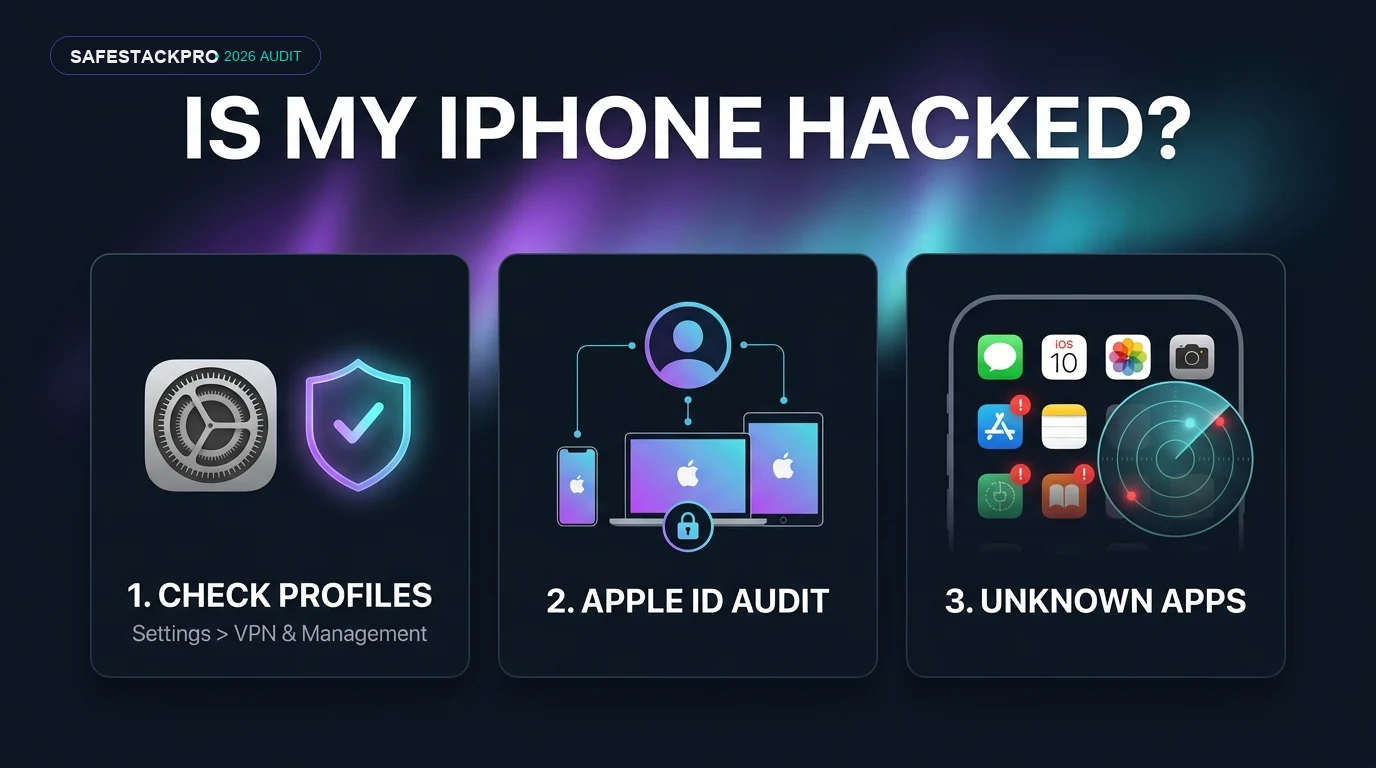
Real iPhone compromise almost always leaves one of three fingerprints: a configuration profile you didn’t install (Settings › General › VPN & Device Management), a device you don’t recognize signed into your Apple ID (Settings › [your name] › scroll to device list), or an app you never downloaded. If none of those three show anything unfamiliar, the slowdown or battery drain you’re worried about is almost certainly unrelated to hacking — iOS updates, an aging battery, and background app refresh account for the vast majority of cases where users wonder is my iPhone hacked.
01 Is My iPhone Hacked? The Signs That Don’t Actually Mean Anything
Before proceeding to advanced technical checks, it is crucial to eliminate the common false alarms that lead users to ask is my iPhone hacked. A hot chassis, sudden battery loss, or a sluggish browser window feel alarming, but under standard iOS operation, they rarely point to an active cyberattack:
- Battery draining faster: Apple states lithium-ion batteries retain up to 80% capacity after 500 charge cycles (~2–3 years).
- Phone feels sluggish: Usually a recent iOS background indexing pass or full internal storage.
- Data usage spiked: 9 times out of 10, it’s auto-downloaded podcasts or cloud photo sync.
- Phone warm during calls: Standard thermal behavior under sustained cellular/display loads.
- Unfamiliar Configuration Profile: Enables remote management & traffic rerouting.
- Unknown Apple ID Login: Hardware terminal accessing your synced Keychain & photos.
- Sideloaded Unknown App: Bypassing the App Store via developer enterprise certs.
- Persistent Green/Orange Dot: Mic or Camera active when no apps are running.
None of these hardware symptoms should be ignored, but when evaluating whether an iPhone is hacked or experiencing normal wear, you must look for concrete administrative modifications. The forensic checks below provide conclusive diagnostic answers to the question is my iPhone hacked.
02 Check 1: Unknown Configuration Profiles (The #1 Indicator If an iPhone Is Hacked)
If you want to know how to check if my phone is hacked, inspecting configuration profiles is your most decisive first step. Configuration profiles are administrative files that allow corporate IT departments—or deceptive attackers—to push settings directly to iOS. When determining is my iPhone hacked, a rogue profile is the single most common mechanism used to force traffic through a malicious proxy or inspect unencrypted web sessions.
If the “VPN & Device Management” menu contains no configuration profiles, you have no profiles installed — this immediately confirms your device traffic is not being rerouted by third-party MDM profiles. However, if an unrecognized profile is listed that was not provisioned by an employer or school, this is a legitimate indicator to confirm is my iPhone hacked via unauthorized remote management. A rogue profile remains the most common finding when diagnosing is my iPhone hacked. Tap the profile and select Remove Profile immediately.
03 Check 2: Devices Signed Into Your Apple ID (Account Takeover vs Phone Hack)
In many instances where users ask is my iPhone hacked, the underlying problem is not local device malware, but an unauthorized hardware login to their Apple ID account. Because iCloud automatically synchronizes passwords, photos, messages, and location, an intruder who compromised your iCloud credentials gains remote access to your private data without installing spyware on the iPhone itself.
To audit this, open Settings › [your name] at the top of your device, then scroll down to review the registered hardware list. Every active device signed into your Apple ID is displayed here. When individuals suspect is my iPhone hacked, checking for unrecognized Apple ID hardware often provides the exact answer. If you identify a computer, tablet, or phone you do not recognize, someone has unauthorized access to your account.
Tap the unfamiliar device and select Remove from Account. Next, immediately change your Apple ID password from a trusted computer or clean web browser, and verify that two-factor authentication is active. If you need step-by-step guidance on securing your accounts, our 2FA setup guide covers hardware keys and authenticator apps in detail.
04 Check 3: Apps You Didn’t Install (Sideloaded iOS Spyware)
When exploring how to know if my iPhone is hacked, people frequently overlook their App Library. While Apple strictly sandboxes App Store software, enterprise developer certificates can theoretically be misused to distribute unauthorized software outside App Store review. If you are investigating whether your iPhone is hacked, examine your home screen and App Library for unfamiliar utility apps with generic titles such as “System Health”, “Device Manager”, or “Network Update”.
If you identify an unrecognized application: do not open it. Go to Settings, find the app name in your installed apps list, and tap Delete App directly. Subsequently, re-check the configuration profile menu, as rogue enterprise apps always require an accompanying enterprise management profile to execute. Auditing unapproved apps is essential when determining is my iPhone hacked.
05 Using Apple’s Built-In Safety Check to Detect Snooping
Starting with iOS 16 and continuing through current releases, Apple introduced Safety Check, a dedicated privacy feature designed for situations where an individual suspects unauthorized access or digital stalking. The official Apple Personal Safety User Guide details two operational modes:
Immediately severs all location sharing, revokes app permissions (camera, microphone, photos), and resets your Apple ID password in one single emergency action.
Allows you to methodically audit and revoke data sharing person-by-person and app-by-app without disrupting trusted family accounts.
You can access this tool at Settings › Privacy & Security › Safety Check. If you are questioning is my iPhone hacked because an acquaintance or ex-partner seems to know your physical location or messages, Safety Check is your most effective forensic countermeasure to verify is my iPhone hacked and immediately cut off illicit monitoring.
06 Signs of an Unauthorized Jailbreak: How to Check If My Phone Is Hacked
Apple’s kernel security and sandbox protections, detailed extensively in the official Apple Platform Security documentation, prevent applications from accessing other apps’ isolated memory spaces. However, if a device is jailbroken, these kernel restrictions are stripped away. When determining how to check if my phone is hacked or evaluating is my iPhone hacked via jailbreaking, look for the following concrete indicators:
- Unfamiliar Package Managers: The presence of icons such as Cydia, Sileo, Zebra, or TrollStore that you did not install.
- Banking App Tamper Alerts: Major banking and enterprise security apps immediately refuse to launch, displaying warnings that the iOS sandbox integrity is compromised.
- Abrupt System Freezes: Modified iOS system binaries frequently conflict with background daemons, resulting in continuous springboard restarts.
If you observe these symptoms and did not jailbreak the device yourself, detecting jailbreak artifacts provides definitive confirmation for is my iPhone hacked. Proceed immediately to the containment steps below.
07 If You Found Something: The 5-Minute Containment Protocol
If your diagnostic checks confirm the suspicion is my iPhone hacked with an affirmative finding—such as an unrecognized profile or device login—follow this containment protocol in exact order:
- Change your Apple ID password first from a separate, clean device (such as a laptop or trusted secondary phone).
- Remove all unfamiliar profiles and devices via Settings › General › VPN & Device Management and Settings › [Your Name].
- Verify Two-Factor Authentication is active on your Apple ID and confirm your trusted telephone numbers are correct.
- Update iOS to the latest security release via Settings › General › Software Update to patch known zero-day vulnerabilities.
- Change your device passcode to prevent physical re-entry, particularly if an unauthorized individual had physical access to your phone.
A full factory wipe (Settings › General › Transfer or Reset iPhone › Erase All Content and Settings) represents the ultimate remediation measure. If you discovered an unauthorized jailbreak, an immediate clean factory restore without restoring from an unverified backup is strongly recommended to guarantee your iPhone is hacked no longer.
08 Apple Lockdown Mode: When Extreme Protection Is Actually Warranted
“Lockdown Mode is an optional, extreme protection that’s designed for the very few individuals who, because of who they are or what they do, might be personally targeted by some of the most sophisticated digital threats.”
— Apple Support, About Lockdown Mode
For high-risk individuals—such as investigative journalists, political activists, or corporate executives handling sensitive trade secrets—evaluating whether an iPhone is hacked involves sophisticated mercenary spyware like Pegasus, analyzed by independent research groups like Citizen Lab. To neutralize zero-click iMessage and WebKit exploits, Apple developed Lockdown Mode.
When enabled (Settings › Privacy & Security › Lockdown Mode), it strictly blocks complex message attachments, disables JIT JavaScript compilation, and restricts wired USB accessory connections when the phone is locked. For ordinary users asking is my iPhone hacked, Lockdown Mode is generally unnecessary, but it provides robust, military-grade protection against targeted state-sponsored intrusions.
09 Frequently Asked Questions: How to Know If My iPhone Is Hacked
How do I know if my iPhone is hacked without checking every setting manually?
The fastest single check is Settings > General > VPN & Device Management. If it does not appear as an option at all, you have zero configuration profiles installed, which rules out the most common real-world compromise vector on iOS in under 30 seconds. Next, inspect Settings > [Your Name] to ensure no unfamiliar devices are signed into your iCloud account. If both sections are clean, your iPhone is almost certainly not compromised.
Can someone hack my iPhone just by knowing my phone number?
Not through the phone number alone under normal conditions. While highly sophisticated zero-click mercenary exploits exist, they cost millions of dollars, are patched quickly by Apple, and target high-profile government figures or investigative journalists. For everyday users and freelancers, asking is my iPhone hacked after receiving an unsolicited text or call almost always points to a social engineering phishing attempt rather than an active device exploit.
Does a factory reset guarantee my iPhone is clean again?
Yes, in virtually all realistic scenarios. Erasing all content and settings (Settings > General > Transfer or Reset iPhone) reinstalls a pristine, cryptographically signed copy of iOS, wiping malicious configuration profiles, unauthorized enterprise certificates, and any jailbreak modifications. The only theoretical exceptions involve nation-state persistent baseband spyware, which does not target typical commercial users.
I found a device I don’t recognize in my Apple ID device list — what is the first thing I should do?
Immediately tap the unfamiliar hardware and select Remove from Account. Next, change your Apple ID password immediately from a trusted computer or clean web browser, and verify that two-factor authentication is active with an authorized phone number or security key. Removing the device first instantly revokes its access token to your synchronized iCloud Keychain and data.
Is it normal for my iPhone’s battery to drain faster after an iOS update?
Yes, this is completely normal and one of the most common false alarms that leads people to wonder is my iPhone hacked. Following a major iOS update, your iPhone runs intensive background file re-indexing, photo library scanning, and machine learning model compilations for 24 to 48 hours. If battery drain continues past 3 days, navigate to Settings > Battery to identify misbehaving background apps.
Can antivirus software detect if my iPhone is hacked?
No, because Apple’s strict iOS sandboxing prevents any third-party app from scanning other applications, memory processes, or core system files. Commercial security apps in the App Store primarily offer DNS-level web protection and phishing link filtering. Performing the manual forensic checks detailed in this guide provides far greater diagnostic accuracy than any iOS antivirus scanner.
10 Is My iPhone Hacked? The Final Verdict
For the vast majority of people searching is my iPhone hacked, the definitive answer is no. Common symptoms such as battery drain, elevated device temperatures, or browser pop-ups stem from mundane factors: background app indexing, natural battery degradation, or calendar spam subscriptions. When determining how to know if my iPhone is hacked, real-world compromise requires tangible forensic evidence—unauthorized configuration profiles, unapproved Apple ID hardware logins, or rogue sideloaded applications.
By executing the five checks outlined in this guide, you can eliminate anxiety and confirm is my iPhone hacked in under two minutes without panic. If a genuine compromise vector is identified, following our structured containment protocol guarantees full recovery and reinforces your mobile security posture.
