Establishing an automated cloud backup strategy is the ultimate survival mechanism for remote freelancers, guaranteeing that hardware failures, accidental deletions, or ransomware attacks cannot destroy irreplaceable client deliverables.
Filter backup providers by cold-storage tier, per-TB pricing, private encryption keys (Zero-Knowledge), and versioning retention to find the most secure cloud for your client archives.
| Provider | Service Type | Storage Capacity | Zero-Knowledge | Price / Month | Best Freelance Role |
|---|---|---|---|---|---|
| Backblaze | Dedicated Cloud Backup | Unlimited per Mac/PC | Optional Private Key | $9/month | Set-and-Forget Recovery |
| Google Drive | Cloud Storage & Sync | 2 TB (Google One) | No (Standard AES) | $9.99/month | Collaboration • Google Docs |
| Dropbox | Cloud Storage & Sync | 2 TB (Plus) | No (Proprietary) | $9.99/month | Designers • Client File Sharing |
| Sync.com | Encrypted Cloud Storage | 2 TB (Solo Basic) | Yes (100% Zero-Knowledge) | $8/month | Legal, Medical, NDA Freelancers |
| OneDrive | Cloud Storage & Sync | 1 TB (Microsoft 365) | Personal Vault only | $6.99/month | Office Users • Windows Pros |
01 Why Freelancers Need a Real Backup Strategy
When a corporate laptop drive fails, an internal IT department issues a replacement from inventory, restores user profiles from central servers, and absorbs the lost hours. When an independent freelancer’s laptop dies mid-project, the consequences are immediate: missed client milestones, lost billable hours, reputational damage, and potential contractual penalties.
A single hardware catastrophe or ransomware infection can wipe out weeks of unbilled creative assets. Implementing automated off-site backups ensures that equipment failure remains a temporary hardware inconvenience rather than a business-ending disaster.
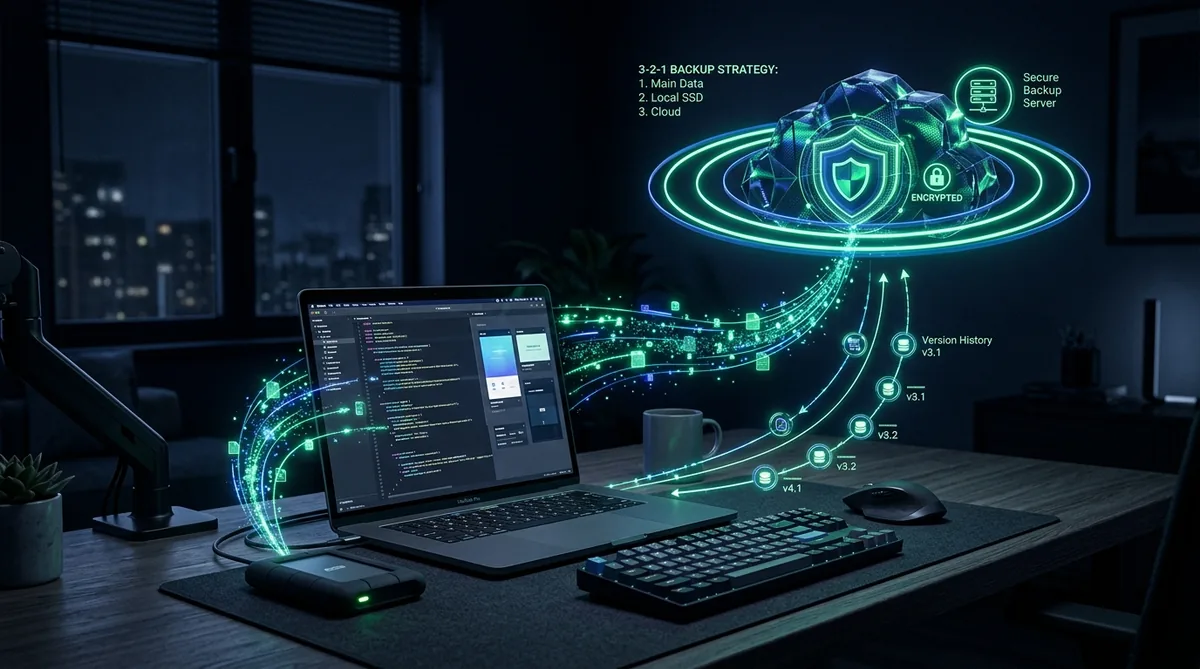
02 The 3-2-1 Backup Rule Explained for Remote Work
The gold standard for data resilience is the 3-2-1 rule, popularized across the tech industry by Backblaze’s authoritative backup framework. The methodology is straightforward:
3 Copies of Your Data
Keep your primary working files plus at least two complete backup duplicates of all ongoing client projects.
2 Different Media Types
Do not store all copies on identical hardware. Combine an internal NVMe SSD with an external rugged hard drive.
1 Off-Site Cloud Copy
Maintain at least one copy in an automated cloud backup vault to protect against fire, flood, or physical burglary.
1 Immutable / Offline Copy
Keep an air-gapped external drive disconnected from your network to neutralize automated ransomware propagation.
Explore our tactical walkthrough on applying this formula inside our dedicated 3-2-1 Backup Rule Guide for Freelancers.
03 Cloud Storage vs. Dedicated Backup: The Critical Difference
The most widespread and dangerous misconception in freelance computing is believing that Dropbox, Google Drive, or Microsoft OneDrive constitute a complete backup system.
Cloud synchronization tools are designed for file accessibility, not disaster recovery. If ransomware encrypts your local files, the sync engine immediately uploads the encrypted versions to the cloud, overwriting your backups across all devices in real time.
In contrast, dedicated cloud backup services (such as Backblaze) continuously mirror your entire computer filesystem, maintain 30 to 365 days of immutable version history, and allow full-disk point-in-time restores. Understanding this distinction is essential for choosing the right tools.
04 How We Evaluate Cloud & Backup Providers
When reviewing solutions for remote solopreneurs, our evaluation focuses on four non-negotiable criteria:
- Continuous Background Automation: The software must run silently in the background without requiring manual file selection.
- Ransomware Resilience: The platform must align with official CISA Ransomware Defense Guidance by supporting air-gapped versioning.
- Bandwidth & Resource Efficiency: Upload throttling and deduplication ensure heavy backups do not lag video conference calls.
- Storage Architecture Security: We verify data center compliance against NIST Security Guidelines for Storage Infrastructure.
05 Cloud Storage and Backup Providers at a Glance
Most freelancers achieve ideal resilience by combining one sync tool for daily client collaboration with one dedicated off-site backup tool for disaster recovery:
| Platform | Primary Use Case | Version History | Client Sharing |
|---|---|---|---|
| Backblaze | Unattended full-system cloud backup | 30 Days (Extendable to 1 Year) | No (Personal Vault) |
| Google Drive | Real-time collaboration & client handoffs | 30 Days (Per File) | Industry Standard |
| Dropbox | Large file delivery & creative assets | 30 to 180 Days | Granular Permissions |
| Sync.com | Zero-knowledge encrypted client portal | 180 to 365 Days | Password-Protected Links |
06 Choosing a Backup Strategy for Your Freelance Role
Your optimal backup pipeline depends entirely on the nature and volume of the files you produce:
For Developers & Technical Writers: Source code should reside on Git repositories (GitHub/GitLab), while local configuration dotfiles and client contracts are backed up automatically via Backblaze.
For Video Editors & Visual Artists: Because raw footage consumes terabytes of bandwidth, back up project timelines (.prproj, .fcp) and final exports to the cloud daily, while archiving raw media onto mirrored local RAID/SSD drives.
For General Business Consultants: Rely on Google Workspace or OneDrive for daily working folders, supported by our recommended Cloud Storage Platforms Comparison.
07 Setting Up a Complete 3-2-1-1 Stack in Under an Hour
Deploying professional-grade off-site backup protection does not require complicated server administration:
- Step 1: Configure Local Time Machine or File History (15 Mins): Connect an external USB-C SSD drive. Enable Apple Time Machine (macOS) or File History (Windows) for hourly local snapshots.
- Step 2: Install Dedicated Backup Software (15 Mins): Install Backblaze, enter your private encryption key, and let the initial backup run overnight.
- Step 3: Establish Client Sync Folders (15 Mins): Configure selective sync in Google Drive or Dropbox to manage active deliverables.
- Step 4: Monthly Air-Gap Routine (5 Mins): Once a month, clone your essential archive to a secondary SSD and store it unplugged in a drawer.
08 Encryption Standards: At Rest vs In Transit vs Zero-Knowledge
When uploading client deliverables to an off-site repository, understanding encryption boundaries prevents data privacy violations:
- In Transit: Encrypted using TLS 1.3 as packets travel over the internet, preventing eavesdropping on public Wi-Fi.
- At Rest: Encrypted on the provider’s physical server drives using AES-256.
- Zero-Knowledge / Client-Side: Encrypted on your machine before transmission using a private key known only to you. Neither Google nor Dropbox offer zero-knowledge by default; dedicated providers like Sync.com and pCloud Crypto specialize in this standard.
09 Client Data Compliance and Retention Policies
Enterprise clients routinely include strict data destruction clauses in consulting agreements. Retaining sensitive client data indefinitely on unsecured drives exposes you to legal liability if that client suffers a future audit.
Establish a documented retention schedule: archive final client deliverables for 12 months after contract completion, then securely erase local and cloud staging directories. Incorporate this hygiene into our Complete Security Stack for Freelancers.
10 The Golden Rule: Test Your Restore, Not Just Your Backup
An off-site backup that has never been restored is merely an unverified hypothesis. Hardware and software corruption can silently render backup archives unreadable.
Every three months, log into your backup dashboard and restore three random files: an old project contract, a high-resolution image, and an archive archive. Verify that the files open cleanly without corruption. If you cannot restore under calm conditions, you will not be able to restore during an emergency.
11 Common Backup Myths Debunked
Dismantling persistent misconceptions saves freelancers from sudden data loss:
- Myth 1: “Google Drive is my backup.” Accidental deletions or syncing corruptions replicate across all devices immediately. Google Drive is a collaboration tool, not a discrete backup.
- Myth 2: “My laptop is new, so the SSD won’t fail.” Solid-state drives fail without warning, often due to sudden controller failures that provide zero clicking sounds or advance symptoms.
- Myth 3: “Backing up takes too much bandwidth.” Modern backup agents use block-level incremental uploads, transmitting only the modified bytes of changed files.
12 Individual Cloud Storage & Backup Reviews
Explore our hands-on evaluations of leading cloud tools:
13 Frequently Asked Questions About Cloud Backup
How is cloud backup different from cloud storage?
How much does a proper backup setup cost?
How long does an initial full-system backup take to upload?
Can ransomware infect my cloud backup files?
Data Resilience Verdict: SafeStackPro Standard
Do not confuse cloud synchronization with disaster resilience. Implement the 3-2-1 rule today: combine Google Drive or Dropbox for active client collaboration with Backblaze for automated, full-system cloud backup recovery.
